


Getting promoted is a huge milestone in any career. So, if you’re reading this after a promotion, congrats!
While adding a promotion to your LinkedIn profile is simple, there are a few other things you should consider first.
First, you’re signaling growth, authority, and momentum. Done right, that update can attract new opportunities, inbound messages, and recruiter interest.
But most people click “add position”, type a few lines, and call it a day.
If you want to stand out, you need to make sure your update looks great, reads well, and shows off your achievements the right way.
In this guide, I’ll walk you through how to add a promotion on LinkedIn step-by-step, how to write a post that stands out with the right templates, and how to use smart tactics (and tools like Expandi) to make your update keep working for you long after it goes live.
Why Add a Promotion on LinkedIn?
When you share a promotion on LinkedIn, you’re:
- Showing credibility and growth so that recruiters and potential clients can see clear, career progression.
- Increasing visibility as promotion posts and updates tend to get more impressions than regular posts.
- Opening new doors with each like or comment, expanding your reach organically.
- Strengthening your personal brand as you’re signaling authority, consistency, and that you’re actively growing in your field.
- Re-engaging your network as former colleagues, mentors, or clients might reach out after seeing a promotion post. Leading to new collaborations, referrals, or conversations.
Even if you’re not actively job-hunting, keeping your promotions up to date helps your profile tell the full story. Leading to a fully optimized profile that attracts the right kind of opportunities automatically.
How to Add a Promotion on LinkedIn (Step-by-Step)
There are two ways you can share your promotion on LinkedIn:
- By adding it in the Experience section of your profile, showing how you went from position X to Y.
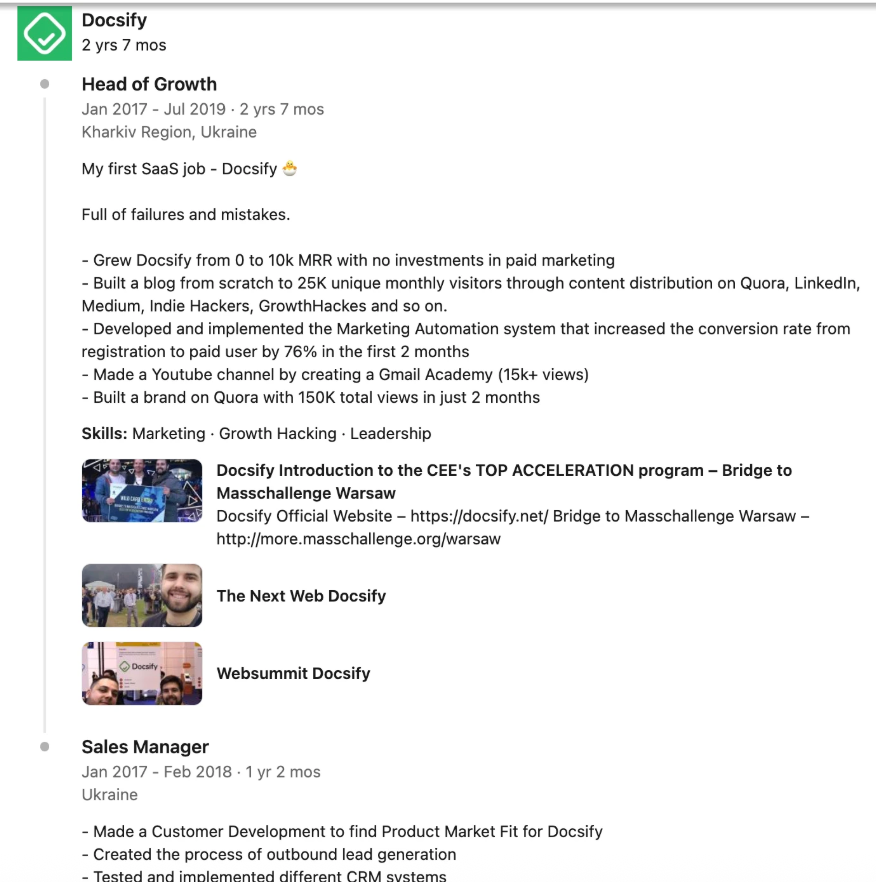
Or by making a “Work Celebration” post to announce it to their network. The same way people announce starting a new project or a business.
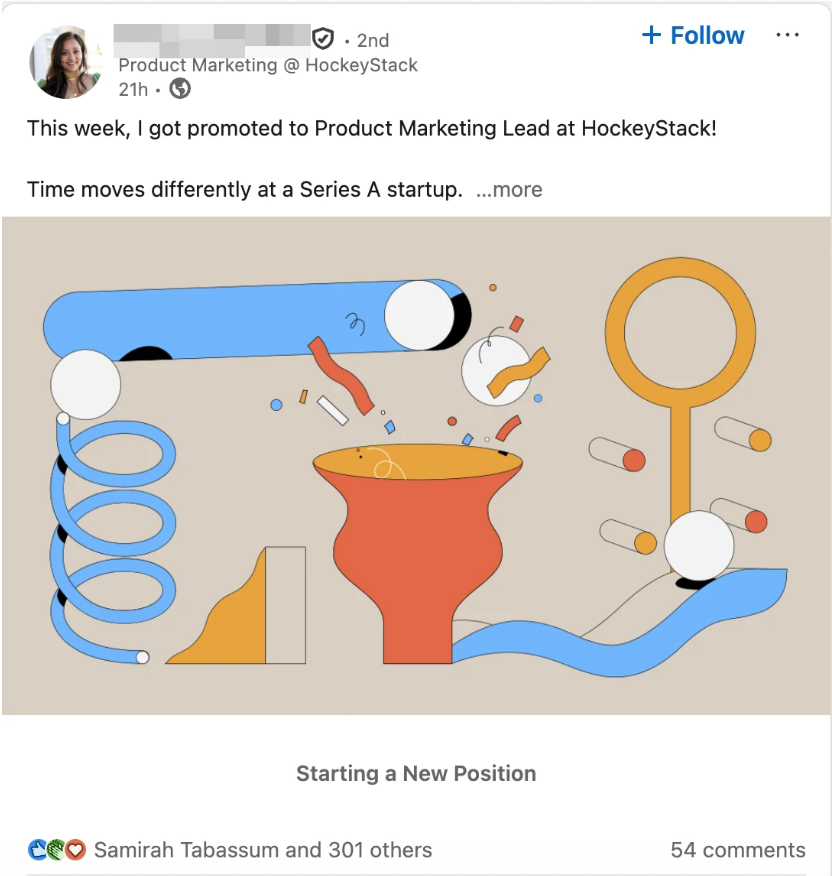
Most people only do one or the other. But if you really want your update to stand out, you’ll want to do both.
The Experience update shows long-term career growth and credibility. While the Celebration post drives engagement and visibility in the feed.
Here’s how:
- Go to your LinkedIn profile and scroll to the experiences section.
- Click on the “+ Add Position” or edit your existing role (if it’s a title change).
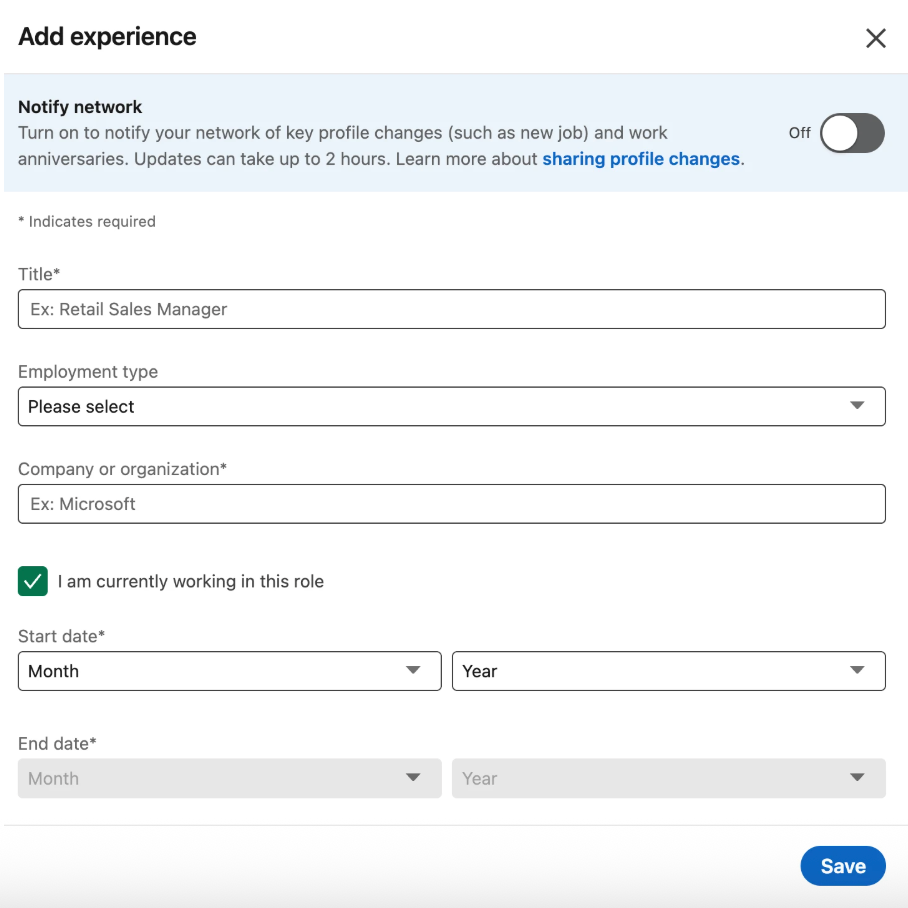
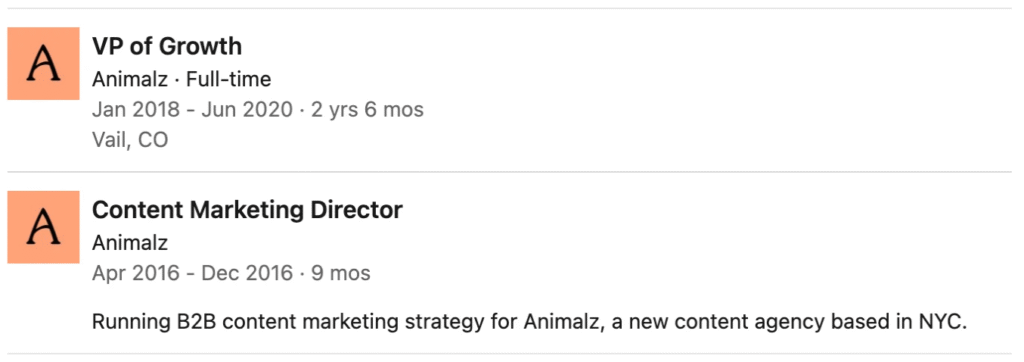
- Enter your new title, start date, and updated description. Make sure the company name and logo match your previous role. This keeps both roles grouped under one company.
- Add measurable achievements or highlights from your new position. You can also make your descriptions easier to scan by formatting important parts of your text. For example, bolding job titles, results, or metrics. Though, if you’re wondering how to bold text in LinkedIn posts – you’ll have to use third-party tools for that.
When to announce a promotion on LinkedIn
Before saving, you should also decide whether to notify your network.
Here’s what that looks like.
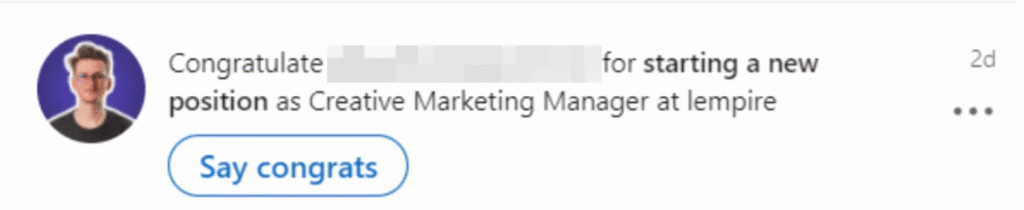
Turn this ON if you’re ready to announce your promotion publicly. It’ll push a “Work Celebration” post to your feed and notify your connections.
Turn it OFF if you’re still updating your profile, want to tweak your description or media first, or prefer to make a separate announcement post later.
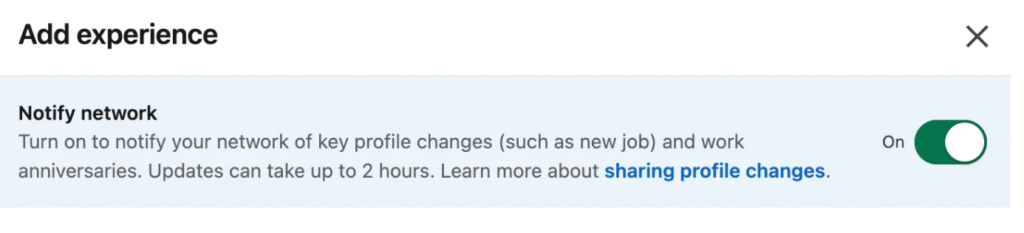
Once you hit save, your new promotion will appear in your Experience section. Either grouped under your company or as a new entry, depending on what you selected.
How to Write a LinkedIn Promotion Post That Stands Out
Once you’ve updated your profile, it’s time to share the news.
Your promotion post brings visibility, engagement, and new opportunities your way. So, you’ll want to get this right. Here’s what most people get wrong though:
They treat it like a status update instead of a personal brand moment.
Pro tip: You can also make your promotion post more readable by using bold or italic text for key points. If you’re wondering how to bold text in a LinkedIn post, you can use simple third-party tools like TypeGrow to format your copy before posting.
Here’s how to do it right.
Structuring your promotion post for maximum impact
Think of your post as having three parts:
1. The hook
Use this to grab attention fast. Make it bold, specific, and emotional if it’s first.
- “Thrilled to share that I’ve been promoted to Marketing Manager at [Company]!”
- “Two years ago, I joined [Company] as an intern. Today, I get to lead the same team that trained me.”
2. The body
Keep this human and results-driven. Mention one or two key learnings or milestones that led to your promotion. Add gratitude naturally (avoid the generic “so humbled” template).
- “Over the past two years, I’ve had the chance to build our outbound engine from scratch and help grow the team from 2 to 8 people. It’s been an incredible journey learning from [@Company]’s leadership team and seeing our efforts turn into real results. From doubling pipeline to closing record-breaking quarters.”
- “I wouldn’t be here without the incredible support from my teammates at [@Company] who’ve challenged and trusted me from day one. Every project, brainstorm, and late-night push has been worth it, and I’m proud of what we’ve built together.”
3. The closing (CTA or reflection)
Finally, share what’s next: your goals, what excites you, or how you want to grow in this new role.
Optionally, you can also invite engagement.
- “Excited to take everything I’ve learned into this next chapter and keep pushing what’s possible for our team at [@Company]. The goal now is simple: keep learning, keep growing, and help others do the same along the way.”
- “Transitions like this always remind me how much growth comes from the people around us. If you’ve made a similar move or have advice for stepping into a new role, I’d love to hear your experience in the comments.”
3 Example LinkedIn Promotion Post Templates
To make things easier, here are three example templates you can use (or adapt) depending on your tone when adding a promotion on LinkedIn. Whether you want to keep it professional, results-driven, or more personal and reflective.
1. Professional & grateful
“I’m excited to share that I’ve been promoted to [new role] at [company]!
Over the past [X years], I’ve had the chance to [insert key achievement or outcome].
Huge thanks to [tag mentors/colleagues] for the support along the way.
Looking forward to what’s next as we [insert goal or mission].”
2. Achievement-driven
“From [old role] to [new role]…
In the last year, I’ve [insert measurable result or outcome].
Excited to take on new challenges and continue driving impact at [company].”
3. Leadership or vision-focused
“Thrilled to step into my new role as [position] at [company].
This next chapter is all about [vision, mission, or goal].
Grateful to my team and everyone who’s been part of the journey. Let’s build the next big thing together.”
Pro tip: Try not to include links in your post right away. LinkedIn suppresses external URLs and lowers your reach. You can add your link (e.g. company website, case study, or press release) in the first comment instead.
How Expandi Can Help You Get More Eyes on Your Promotion
Once your promotion post is live, visibility is key. The more people see and engage with it, the stronger your profile and personal brand become.
With tools like Expandi, you can automate engagement around your promotion post. So that you get the most out of that promotion post, even after the first wave of likes and comments.
For example, you can:
- Automatically send connection requests to people who liked or commented on your promotion post (if they’re not already in your network).
- Set up profile-visit campaigns to re-engage post contacts or prospects.
- Send personalized DMs mentioning your new role to warm up relationships or start new conversations.
- Set up an outreach campaign connecting with new ideal client personas (ICP) once your profile is optimized with the new promotion in mind.
Essentially, Expandi helps you show up in front of the right audience, without spending manual time on sending connection requests, DMs, or even tracking analytics.
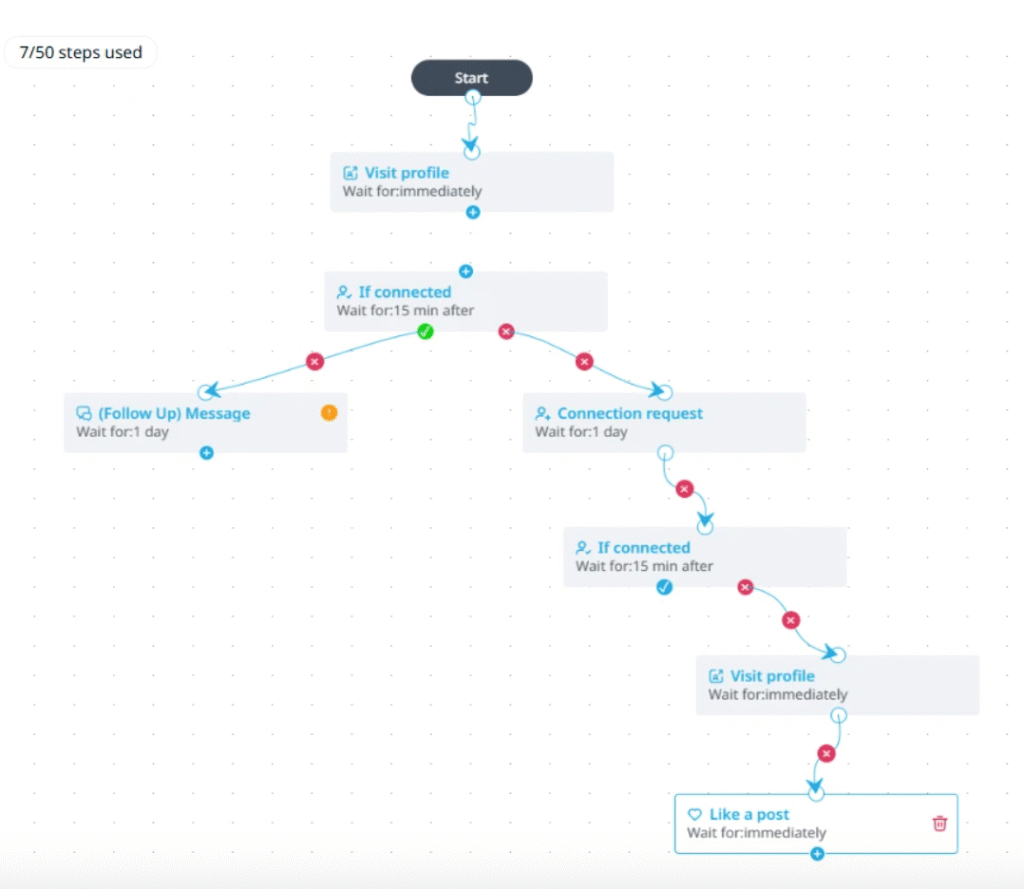
All you have to do is set up smart Actions and Conditions, and Expandi will handle the rest with easy drag-and-drop sequences. E.g. automatically viewing profiles, engaging with posts, and sending personalized messages based on your chosen triggers.
For example, to scrape the list of people who engaged with your promotion post, all you’d have to do is copy the post URL and paste it in Expandi.
Then, you could set up an outreach campaign like this.
Where to Go From Here
So, to recap, adding a promotion on LinkedIn is easy, yes. But done right, it can be a great way to grow your visibility and authority without posting content daily.
Done right, you get to:
- Strengthen your personal brand.
- Build credibility for future employees or clients.
- Re-engage your network with minimal effort.
Just make sure to capitalize on the engagement you get after you make the post!